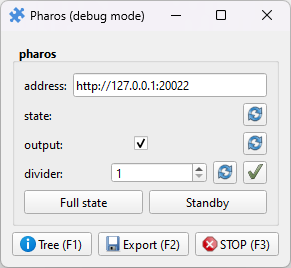
Pharos laser control
Pieces for interacting with Pharos lasers using the puzzlepiece framework.
Example usage (see Getting started for more details on using Pieces in general):
import puzzlepiece as pzp
from pzp_hardware.lightcon import pharos

app = pzp.QApp()
puzzle = pzp.Puzzle(debug=False)
puzzle.add_piece("pharos", pharos.Piece, row=0, column=0, param_defaults={
    "address": "http://123.456.789.1:20022" # optionally specify a default IP address
})
puzzle.show()
app.exec()
Installation
Find the IP address and port corresponding to the Pharos API.
On older Pharos systems, this will be local (so “http://127.0.0.1:20022” for example) if the control app is running on the same computer as the Piece. If the Pharos control app is running on a different computer, it will be that computer’s IP and the same port. You have to select “Run REST server at startup” in the Pharos control app, and restart it. You can then select “help”, which will open a help page in your browser - you can then see the port to use in the address bar. You may need to open this port in the Windows firewall to access it from another computer. It’s best practice to restrict this access to specific computers, so you don’t give control of your laser to everyone on the network.
On newer Pharos systems, this will be the IP address of the laser controller, so the IP you use to access the web-based control panel. You can select “REST API” from the top menu, and note the IP address and port in your browser’s address bar.
Install the
requestslibrary with pip, or wait to be prompted for automatic installation when first running the Piece.Paste the IP address and port you found in the “address” text box, or see above for setting it as the default in
add_piece.
Requirements
This Piece has additional requirements. You will be asked to install them at runtime, or you may choose to install them ahead of time.
requests –
pip install requests– Instructions